In this blog we’ll walk through the steps to set up an S3 Bucket in AWS in order to ingest data into Data Cloud. We’ll be covering the following steps:
(1) Create an S3 Bucket.
(2) Create a Policy for the Bucket.
(3) Create a User to allow read/write access to the bucket.
(4) Create a csv file to upload data into the bucket.
(5) Upload the file into the S3 bucket.
Step I: Create an S3 Bucket
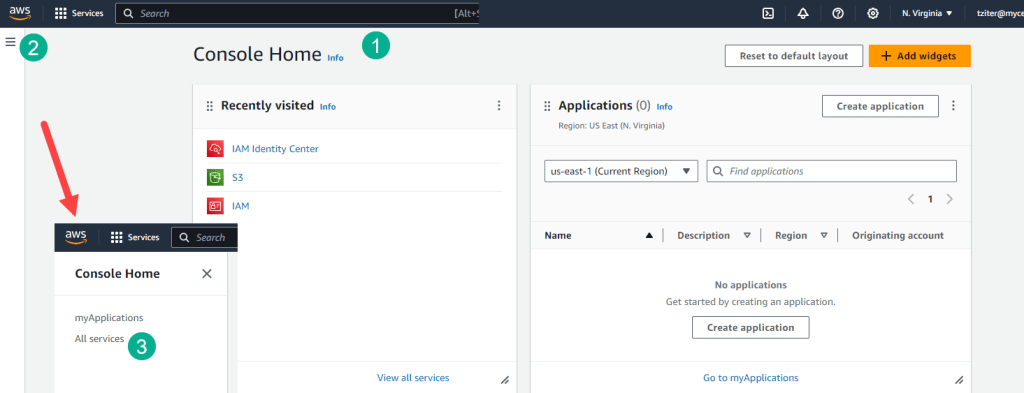
(1) In your Console Home screen.
(2) Click on the hamburger menu in the upper left.
(3) Click on All Services.

(1) Navigate to the Storage section.
(2) Click on S3.

(1) Under the S3 menu.
(2) View the existing buckets.
(3) Click on the Create Bucket button.

(1) Enter in a name.
(2) The name must be unique and not contain capitol letters.
(3) Keep the default settings shown here and click on Create Bucket.
Step II: Create a Policy for the Bucket
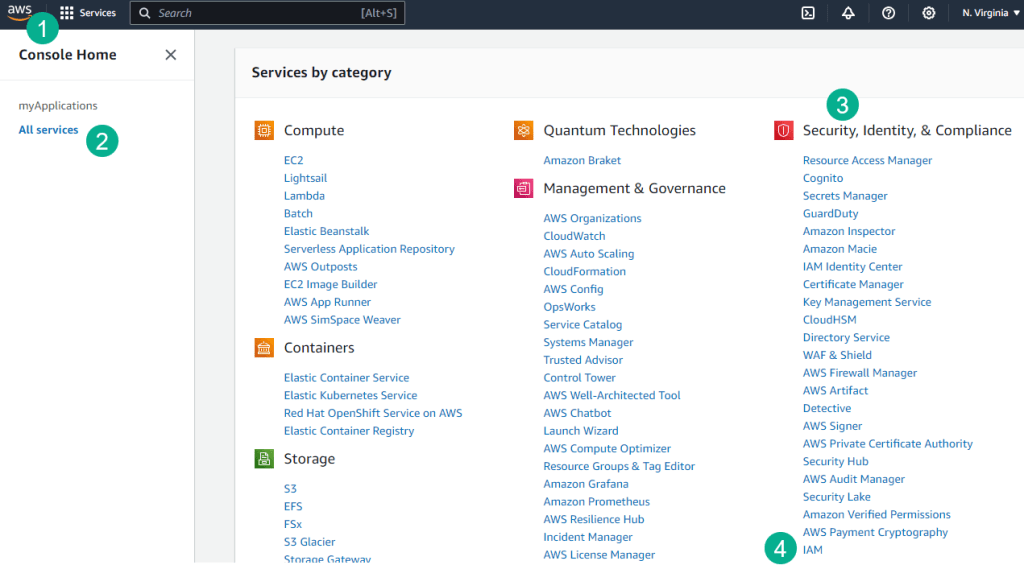
(1) Navigate back to the AWS Home screen.
(2) Click on All Services.
(3) Under Security, Identity, & Compliance.
(4) Click on IAM.

(1) Click on Policies.
(2) Under Filter by Type select “Customer managed”.
(3) Review the settings for other Policies by clicking on the plus icon.
(4) Select Create policy.
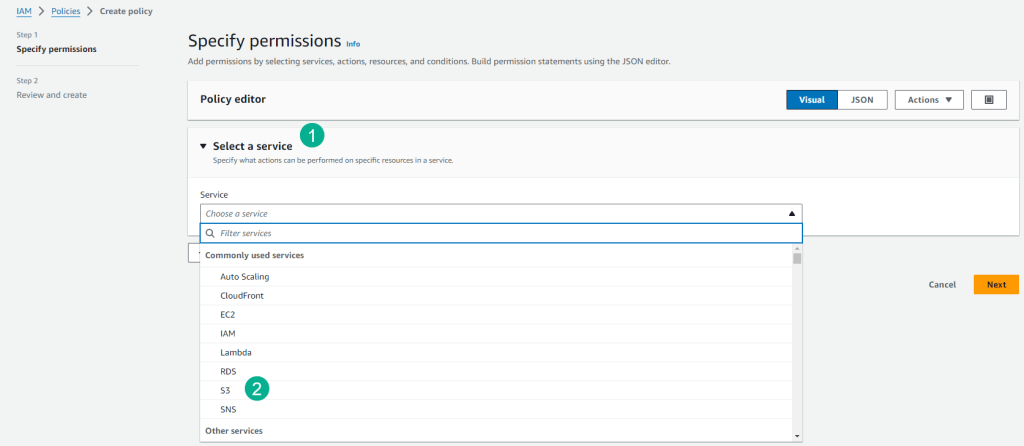
(1) Under Select a service.
(2) Click S3.

(1) Open up Actions allowed (it might already be opened for you).
(2) Open up Write.
(3) Click on Delete Object.
(4) Click on Put Object.

(1) Further down on this screen under Resources make sure Specific is clicked.
(2) Click on Add ARNs.
(3) Enter in the name of the bucket created above.
(4) Select Any object name.
(5) Validate the syntax, in this use case we don’t have a folder in the bucket.
(6) Select Add ARNs.
(7) Back in the Policy screen click the Next button to move onto the final screen.

(1) Enter in the name of the Policy, it might be helpful to keep it the same as the bucket.
(2) Enter in a description.
(3) Validate the settings/syntax.
(4) Select Create Policy.
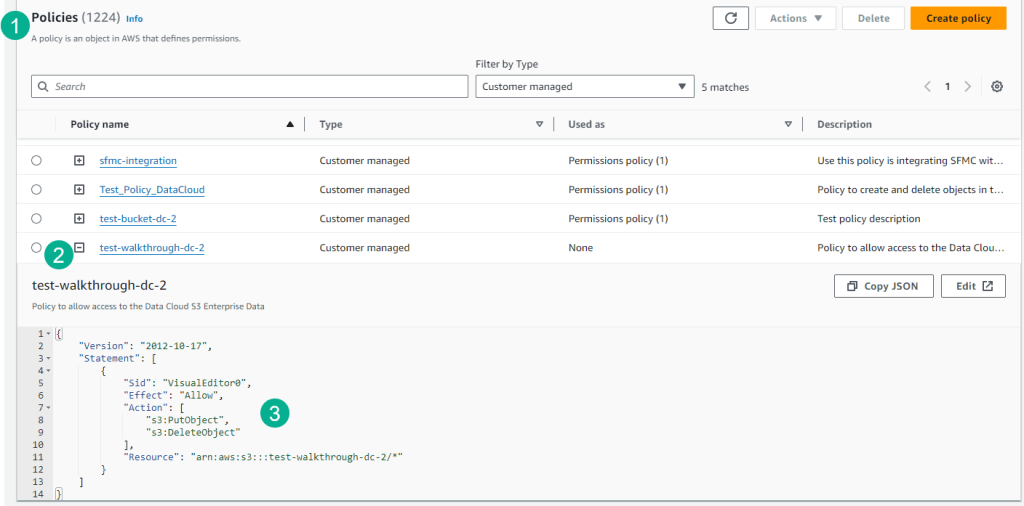
(1) Navigate back to the policies page.
(2) Click on the plus sign next to the Policy.
(3) Validate the JSON code.
Step III: Create a User to allow read/write access to the bucket

(1) While under the IAM menu.
(2) Select Users.
(3) Select Create user.

(1) Enter in a User Name which could be the name of the S3 bucket and Policy.
(2) Click Next.
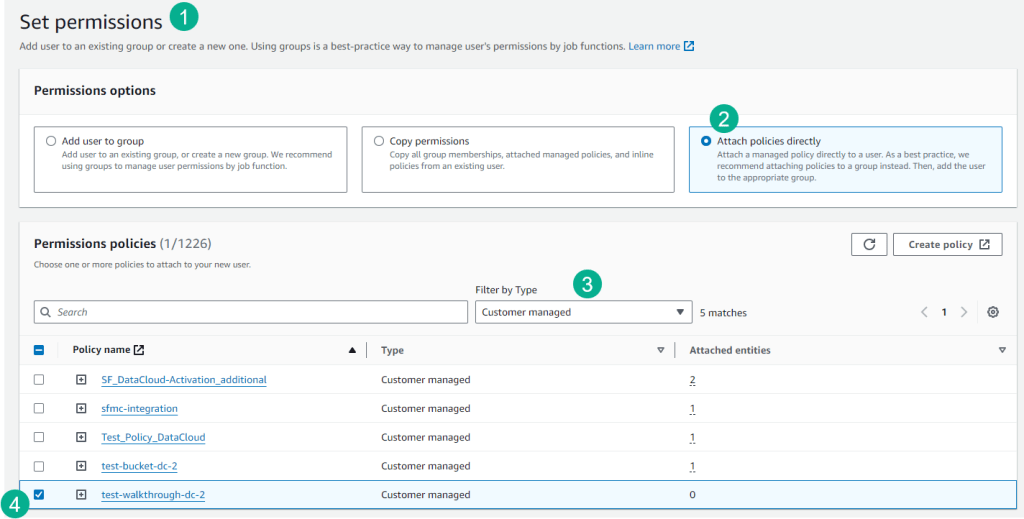
(1) Under Set Permissions.
(2) Select Attach Policies Directly.
(3) Select Customer Managed.
(4) Click on the box for the policy created above.

(1) Select AWS Managed under Filter by type.
(2) Search for AmazonS3.
(3) Click on the box next to AmazonS3ReadOnlyAccess.
(4) Click Next.

(1) Review the permissions.
(2) Click Create user.

(1) Navigate back to the user just created and click into the user.
(2) Select Create access key.
(3) Select Other.
(4) Click Next.

(1) Enter in a name for the access key.
(2) Select Create access key.
(3) Download the ID and Secret.
(4) View the Id and Secret in a csv file that you download. Make sure to store these keys in a safe place. The Secret access key will not be accessible going forward so make sure you save this key.
(5) Select done.
Step IV: Create a csv file to upload data into the bucket

(1) Create a simple csv file to test the upload into the S3 Bucket. We’ll go into more detail in our next blog as to how to create a data set that aligns with the Identity Resolution in Data Cloud.
(2) Add the fields based on the data schema.
Step V: Upload the file into the S3 bucket
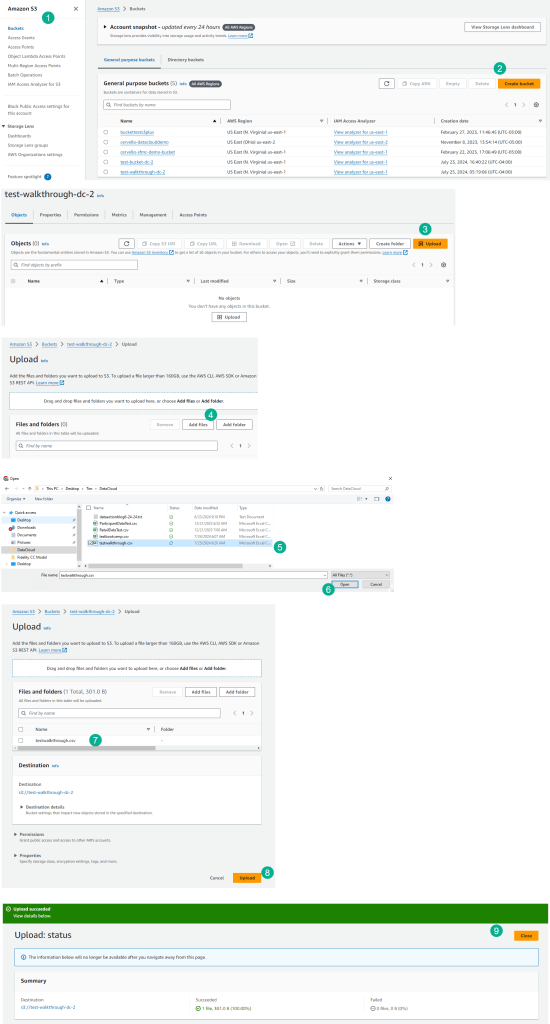
(1) Navigate to the S3 Bucket menu.
(2) Select Create Bucket.
(3) Select Upload.
(4) Select Add Files.
(5) Select the csv file created above.
(6) Select Open.
(7) Verify the correct file was added.
(8) Select Upload.
(9) Select Close.
There you have it, an end to end walkthrough on how to prepare a AWS S3 Bucket to be ingested into Data Cloud. In our next blog we’ll walk through how to connect and upload the data into a Data Stream in Data Cloud. Check out the blog here: https://howtodatacloud.com/2024/07/25/how-to-set-up-an-aws-s3-bucket-for-data-cloud-ingestion/


Leave a Reply